
- -100%
- New

PrestaShop cookie consent banner for GDPR images

v1.0.1 · updated on 10/20/2026
PrestaShop cookie consent banner for GDPR
A cookie banner that follows the Spanish Data Protection Agency (AEPD) guidelines: Accept and Reject on the first layer with the same look, nothing loads before the visitor chooses and every choice is logged.
With Google Analytics 4, Tag Manager, Google Ads and the Meta pixel built in, plus Google Consent Mode v2.
- PS 1.7
- PS 8
- PS 9
- Instant download from My modules
- Updates from your account

Developed and maintained by Kebes, a PrestaShop Expert level 3 agency with more than 15 years developing for PrestaShop.
VEO GDPR Cookie Compliance is a PrestaShop cookie consent module built to meet the 2024 cookie guidelines of the Spanish Data Protection Agency (AEPD) and the GDPR. It works on PrestaShop 1.7.7, 8 and 9.
Why we built it
Since 2024 the AEPD requires the reject button to be on the first layer, visible and as prominent as the accept button. Many banners still hide rejection behind "Settings" or show it as a grey link. And even with a correct banner, if the theme or another module loads Google Analytics or the Meta pixel before the visitor chooses, the shop is already setting cookies without consent.
This module handles both: the banner and what loads behind it.
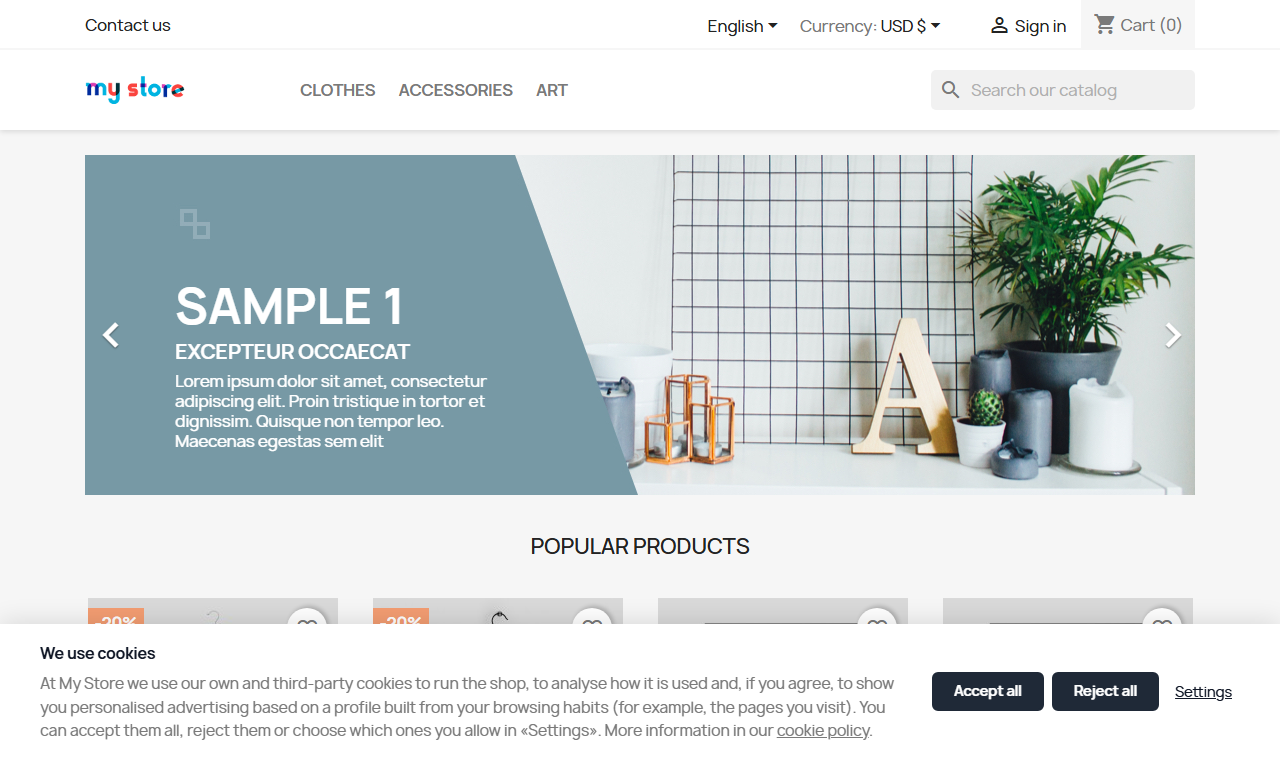
What it does
- Accept and Reject at the same level, same colour and size, plus "Settings" and the link to your cookie policy. The banner does not close on scroll or with an X.
- First-layer text already written with what the guidelines ask for: who you are, what the cookies are for, that there are third-party cookies and that a profile is built. You can change it in every language.
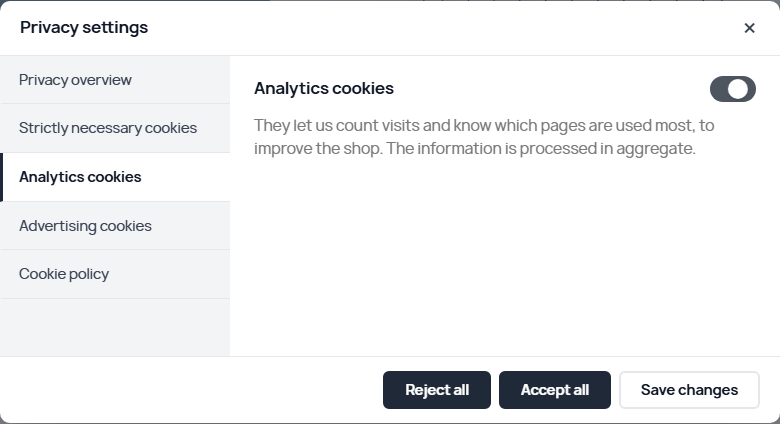
- Settings panel by category (necessary, analytics, advertising and, if you use them, preferences) with every box unticked. Saving with nothing ticked means rejecting.
- Prior blocking: Google, Meta, Microsoft, TikTok, Hotjar, LinkedIn, Pinterest or Criteo codes added by the theme or other modules wait until the visitor accepts their category. It also removes
<noscript>pixels, because without JavaScript there is no way to consent. - Integrations: Google Analytics 4, Google Tag Manager, Google Ads with the purchase conversion and the Meta pixel with PageView and Purchase. Enter the ID and the module loads them only with consent.
- Google Consent Mode v2: everything denied by default and updated when the visitor chooses. Basic mode out of the box.
- Withdrawing consent is as easy as giving it: a floating button and any link to
#veo-cookie-settings. Withdrawing a category deletes its cookies. - Consent log as proof: date, choice, version, browser and the IP without its last block. Search by ID and CSV export. It is kept when the module is uninstalled.
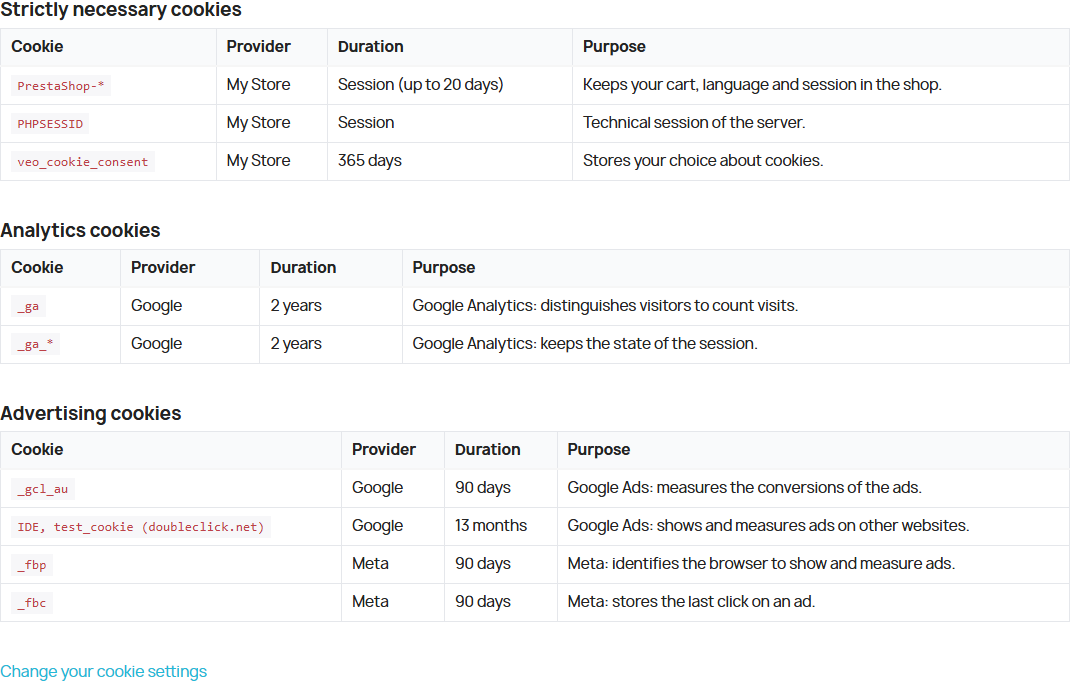
- Cookie list in your policy: write
[veo_cookies_table]in the CMS page and it is built from the integrations you have enabled. - If you change categories or integrations, the banner asks everyone again. The choice is remembered for 365 days (730 at most, the 24 months the AEPD recommends).
- Test mode by IP to review it before your customers see it.
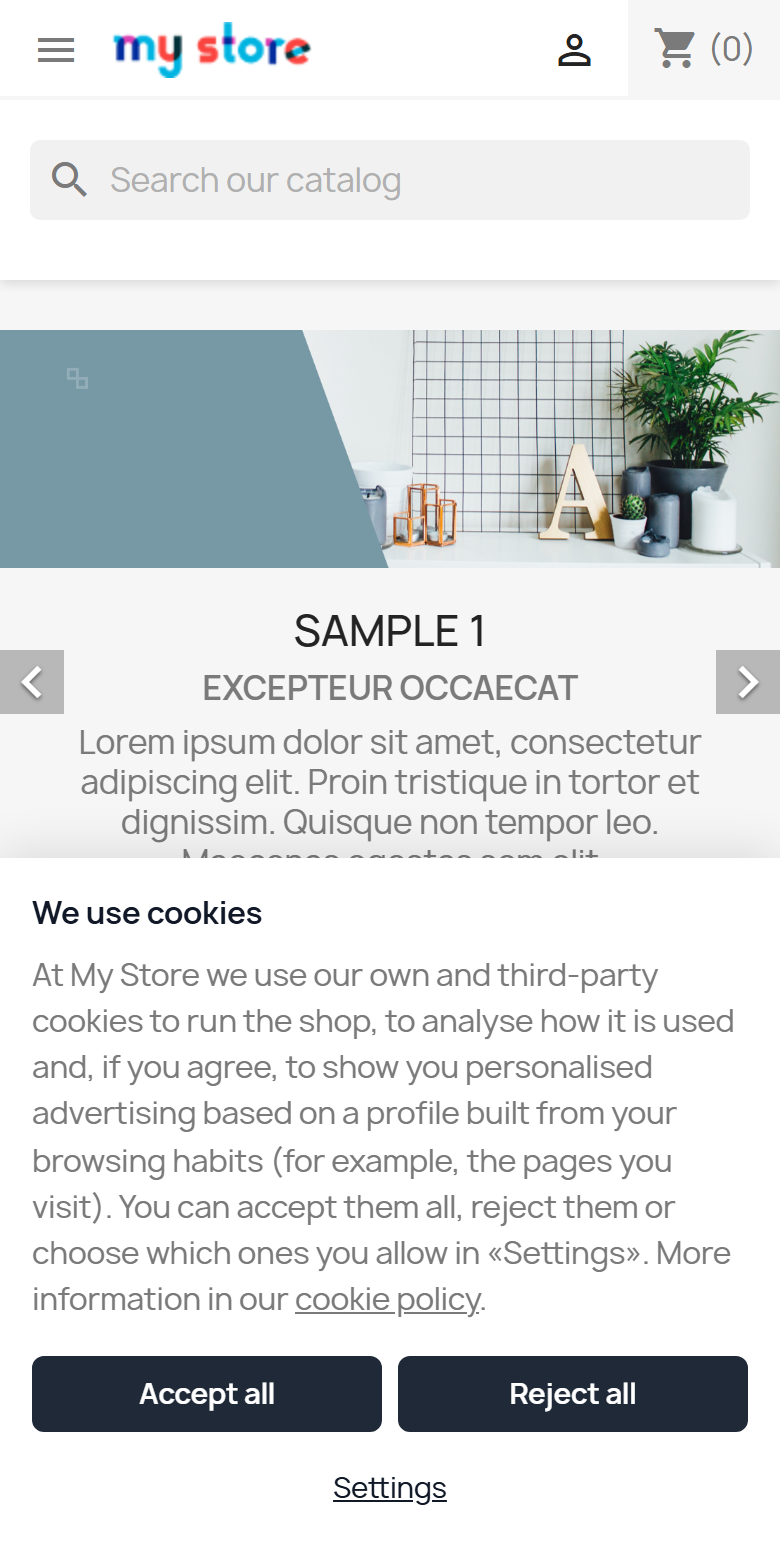
On mobile
Both buttons take the full width and the panel slides up from the bottom. No overflow on the Classic or Hummingbird themes.
Configuration
Six tabs: Settings, Integrations, Texts, Appearance, Cookie list and Consent log. If it finds modules that already add tracking codes, it tells you so you can move their IDs here.
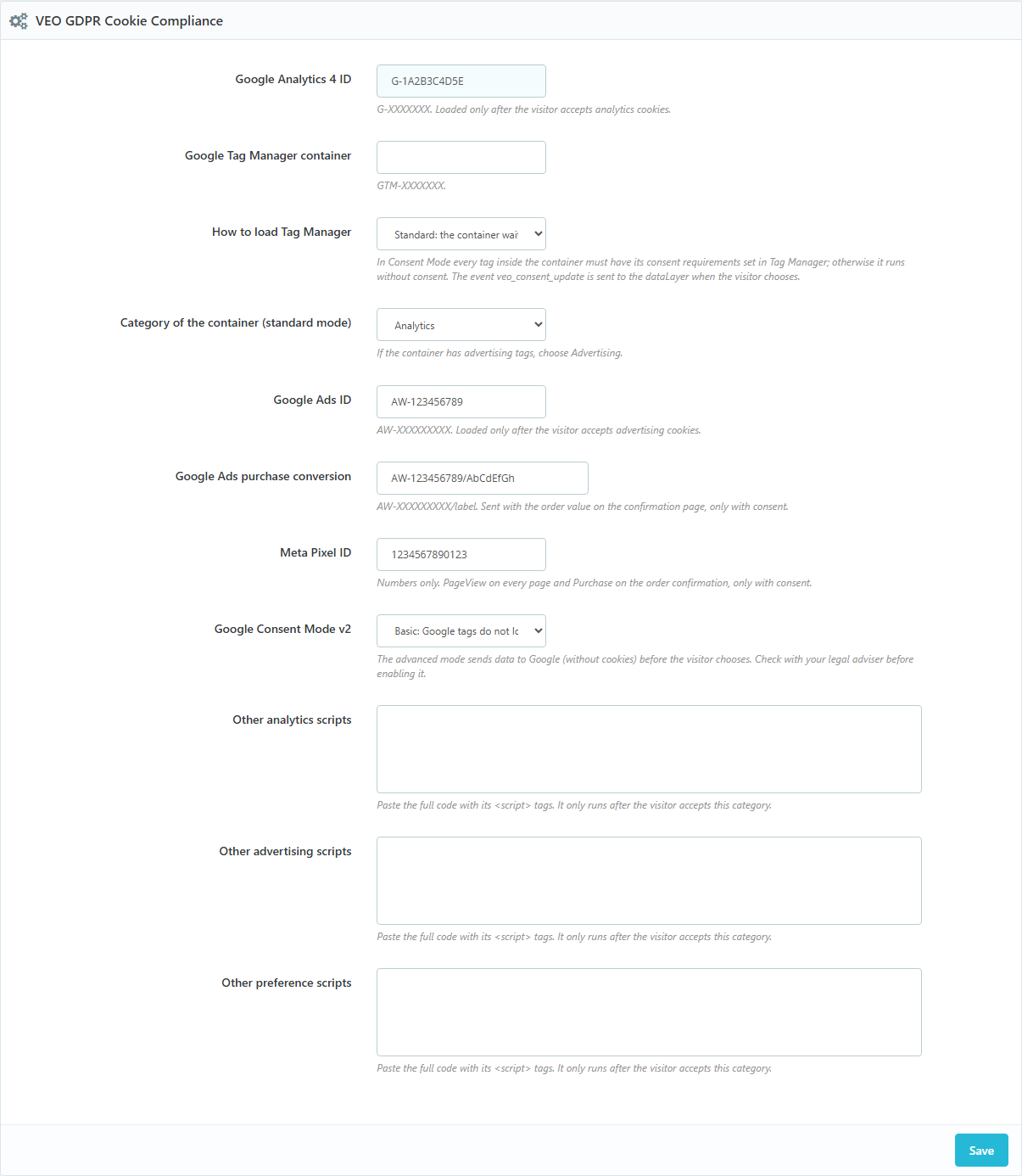
Compatibility
PrestaShop 1.7.7 to 9.2. Tested on 1.7.8.11 (Classic theme), 8.2.7 and 9.2.0 (Hummingbird). No overrides. Works with full-page cache: cached pages never carry active tracking codes.
Installation
- Upload the ZIP from Modules > Module Manager.
- Choose the CMS page of your cookie policy and add
[veo_cookies_table]to its content. - Enter your IDs in Integrations. If another module already loads those codes, disable it.
- Check the banner in test mode and, when it looks right, turn test mode off.
Frequently asked questions
Does this make my shop compliant with cookie law?
The module covers the technical side: how consent is asked, what loads before it and the proof. You or your adviser still have to write the cookie policy; the module builds the cookie table to include in it.
I already have Google Analytics through another module. Does it block it?
Yes, prior blocking holds it until the visitor accepts analytics. Still, it is better to disable that module and enter the ID here, so Consent Mode is applied correctly.
What about Google Tag Manager?
There are two modes. In standard mode the container waits for consent. In Consent Mode it always loads and each tag checks consent, so you have to set those requirements in Tag Manager.
Why is advanced Consent Mode not enabled by default?
Because it sends data to Google, without cookies, before the visitor chooses. You can enable it, but check with your adviser first.
Can I change the colours and texts?
Yes. Main colour, bar or box, top or bottom, floating button on either side, and every text per language. What you cannot do is give Accept a different style from Reject.
Changelog
1.0.1 – 2026-10-20
- `.htaccess` in the module folder that stops its PHP files from being opened directly.
- Code reviewed with the official PrestaShop validator (formatting, headers and good practices). No change in how it works.
1.0.0 – 2026-10-18
- Cookie banner with Accept and Reject at the same level, settings panel by category and a floating button to change the choice.
- Prior blocking of trackers added by the theme or other modules.
- Google Analytics 4, Google Tag Manager, Google Ads and Meta pixel, loaded only with consent, and Google Consent Mode v2.
- Consent log with search and CSV export.
- Cookie list for the policy with [veo_cookies_table].
- Test mode by IP.
Compatibility
| PrestaShop | Module version | Status |
|---|---|---|
| 1.7.7 – 9.2 | 1.0.1 | Compatible |
| 1.7.6 and older | — | Not compatible |
Data sheet
- Versión
- 1.0.1
- Languages
- English, Spanish
- Support languages
- English, Spanish
Will it work in your shop? Ask us before buying
If you need a specific feature, or your PrestaShop version is not listed as tested, tell us. It often works all the same. And if you ask for a feature that improves the module and can help more shops, we add it in a next version at no cost to you. The person who wrote the module answers you.