
- New

Customize the PrestaShop 9 Hummingbird theme: colors, fonts and widths images

v3.0.1 · updated on 10/20/2026
Validated with the official PrestaShop validator
Customize the PrestaShop 9 Hummingbird theme: colors, fonts and widths
Free module to customize the Hummingbird theme of PrestaShop 9 from the back office: color palette, colors per zone, fonts, widths and a glass header.
It works on Hummingbird as is and on any child theme. The whole configuration fits in one JSON file you can export and import.
- PS 9
- Instant download from My modules
- Updates from your account

Developed and maintained by Kebes, a PrestaShop Expert level 3 agency with more than 15 years developing for PrestaShop.
VEO Hummingbird Customizer lets you customize the Hummingbird theme, the default theme of PrestaShop 9, without touching CSS or templates. Hummingbird ships with no options panel: changing the button color or the heading font meant building a child theme and writing the CSS yourself. This module adds that panel under Design > Hummingbird Customizer.
Installing it changes nothing: the factory settings are Hummingbird's own and, until you touch them, the module adds nothing to the page. The shop changes when you save your first setting.
veomod.com runs on Hummingbird with this module.
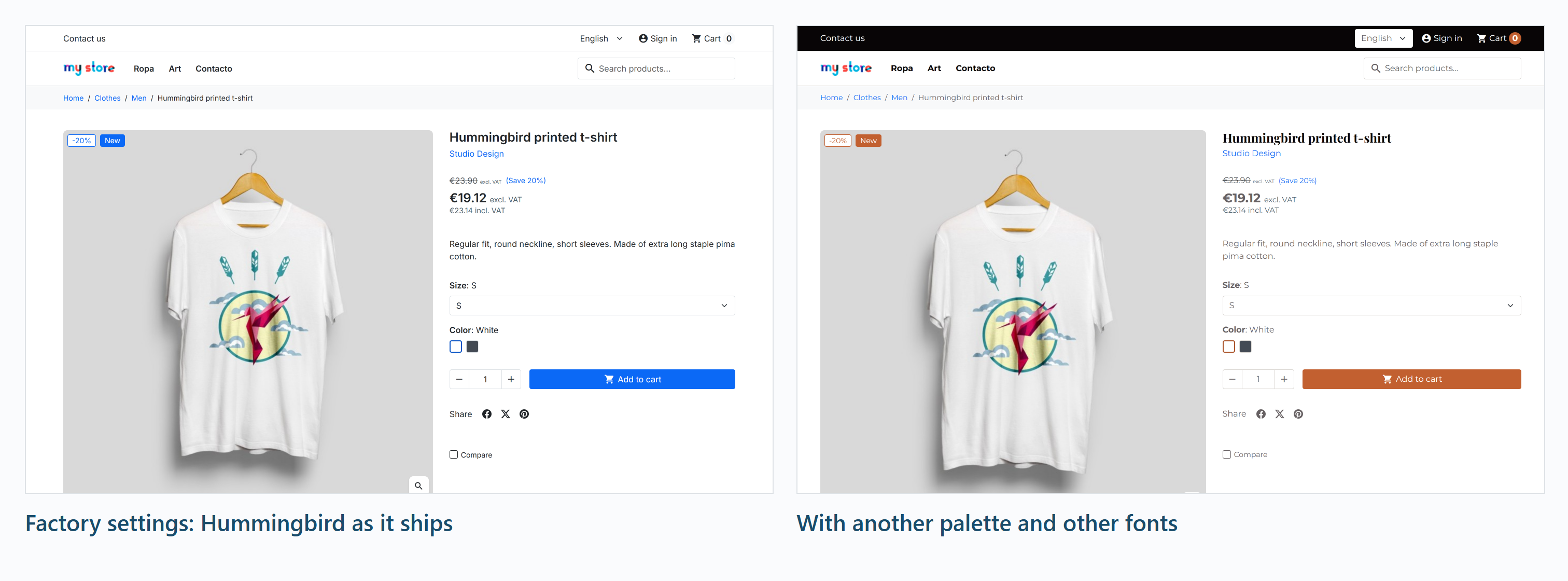
Colors: one palette, every zone on its own
You set nine brand colors (main, hover, headings, text, background, alternate background, borders, subtle background and a free one) with a color picker. Buttons, links and headings take their color from there.
Then you pick the background, text and hover color of six zones: the top banner, the language and cart bar, the header, the mobile menu, the strip above the footer and the footer. Each zone points to a palette color by name, so changing the main color updates every zone that uses it. When a zone needs a color outside the palette, give it its own.
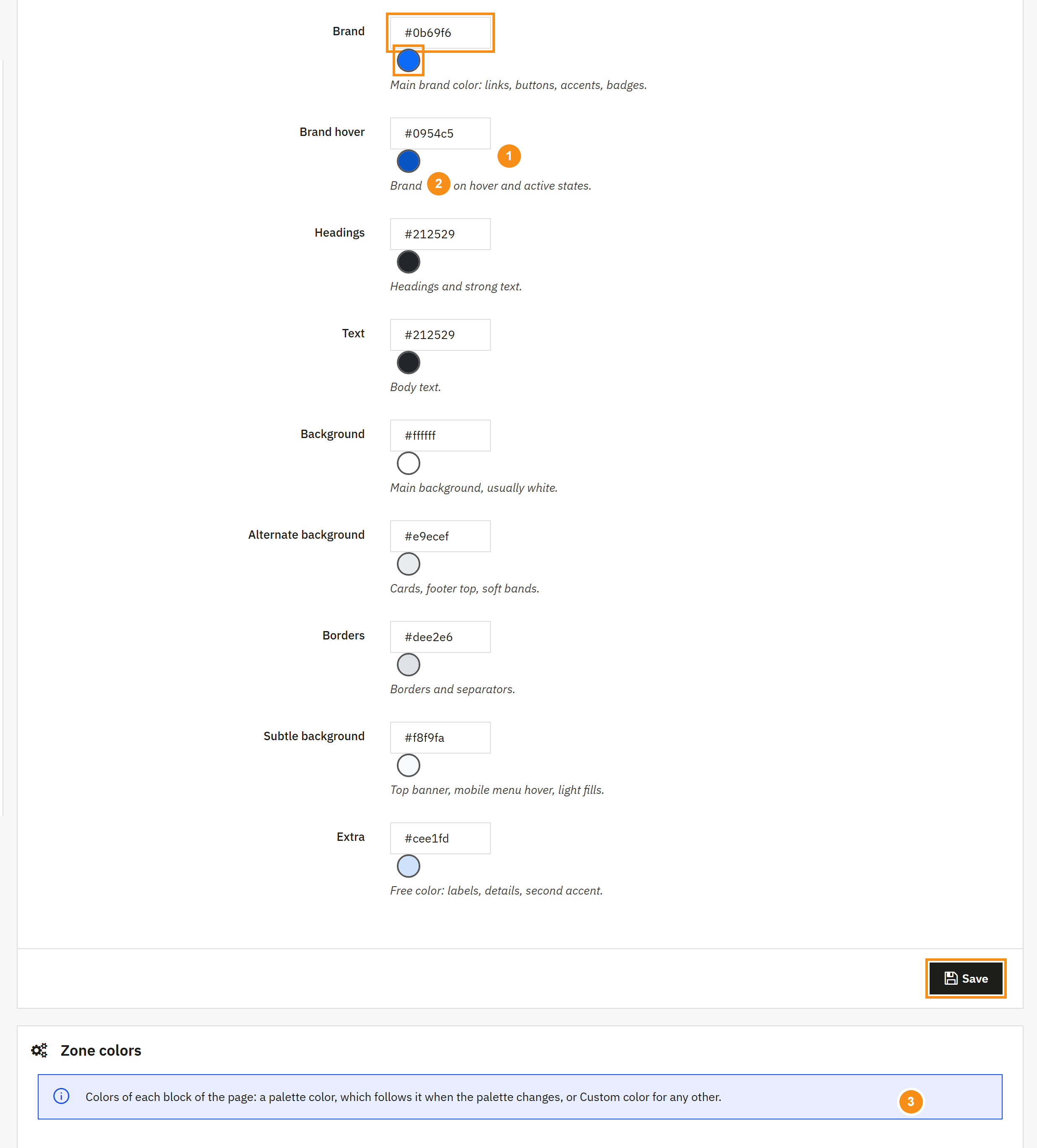
Google Fonts, your own files or system fonts
One font for body text, another for headings. Each can come from Google Fonts, from woff2 files you upload in the same tab, from the theme or from the system, and you choose which weights load so visitors do not download the ones you never use.
Uploaded fonts are stored in img/veohummingbirdcustomizer/fonts/, outside the module folder, so an update does not wipe them.
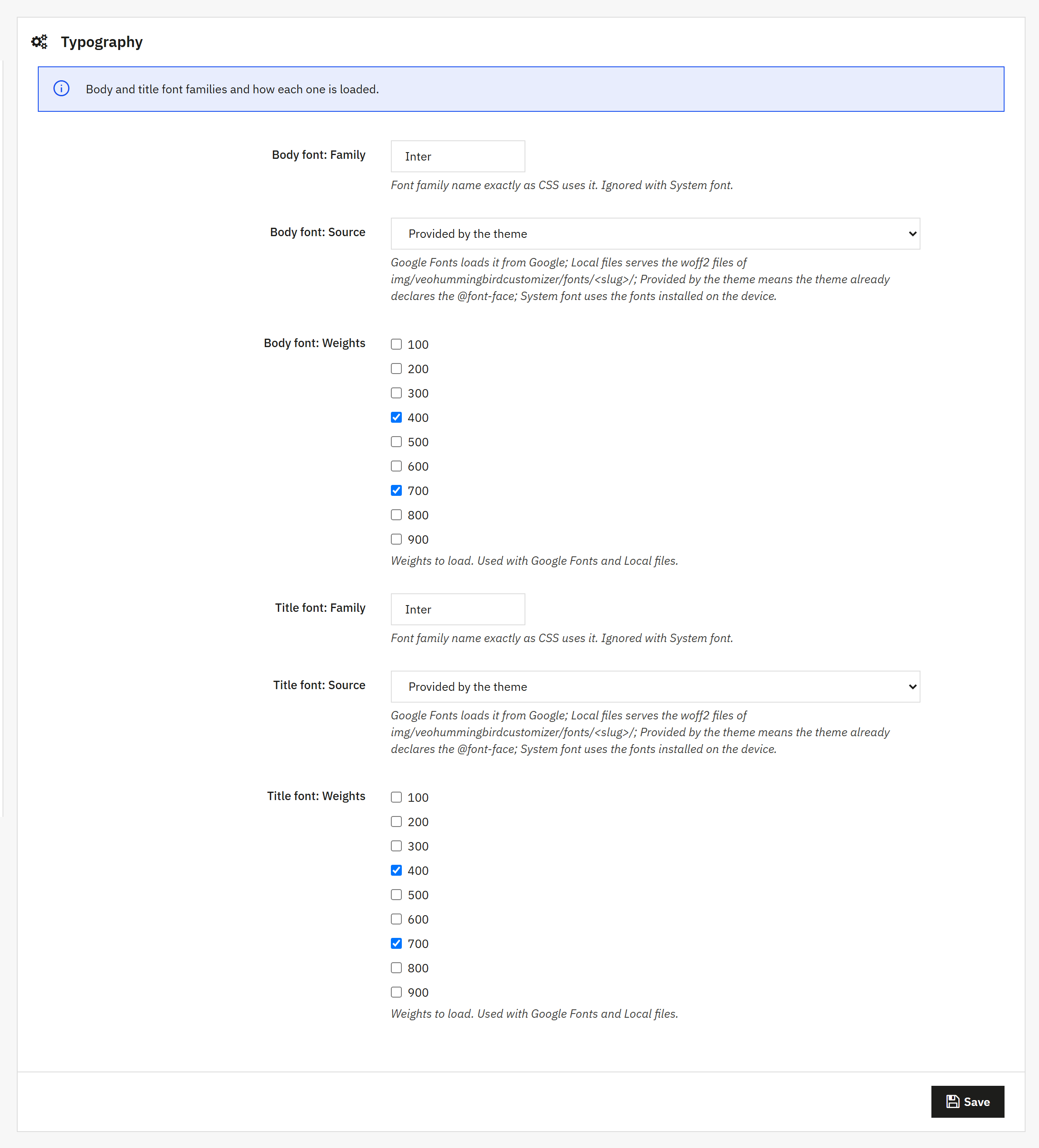
Widths, header and a few extras
- Container max width and desktop side padding.
- Full-width header, content and footer, each one separately.
- Glass header: background opacity and blur of whatever scrolls behind it.
- Cart drawer: the "Product added" popup slides in from the side.
- Slide search: only the magnifier shows and the field opens on hover.
- Subcategory cards with the name only or the image only.
Import and export your settings
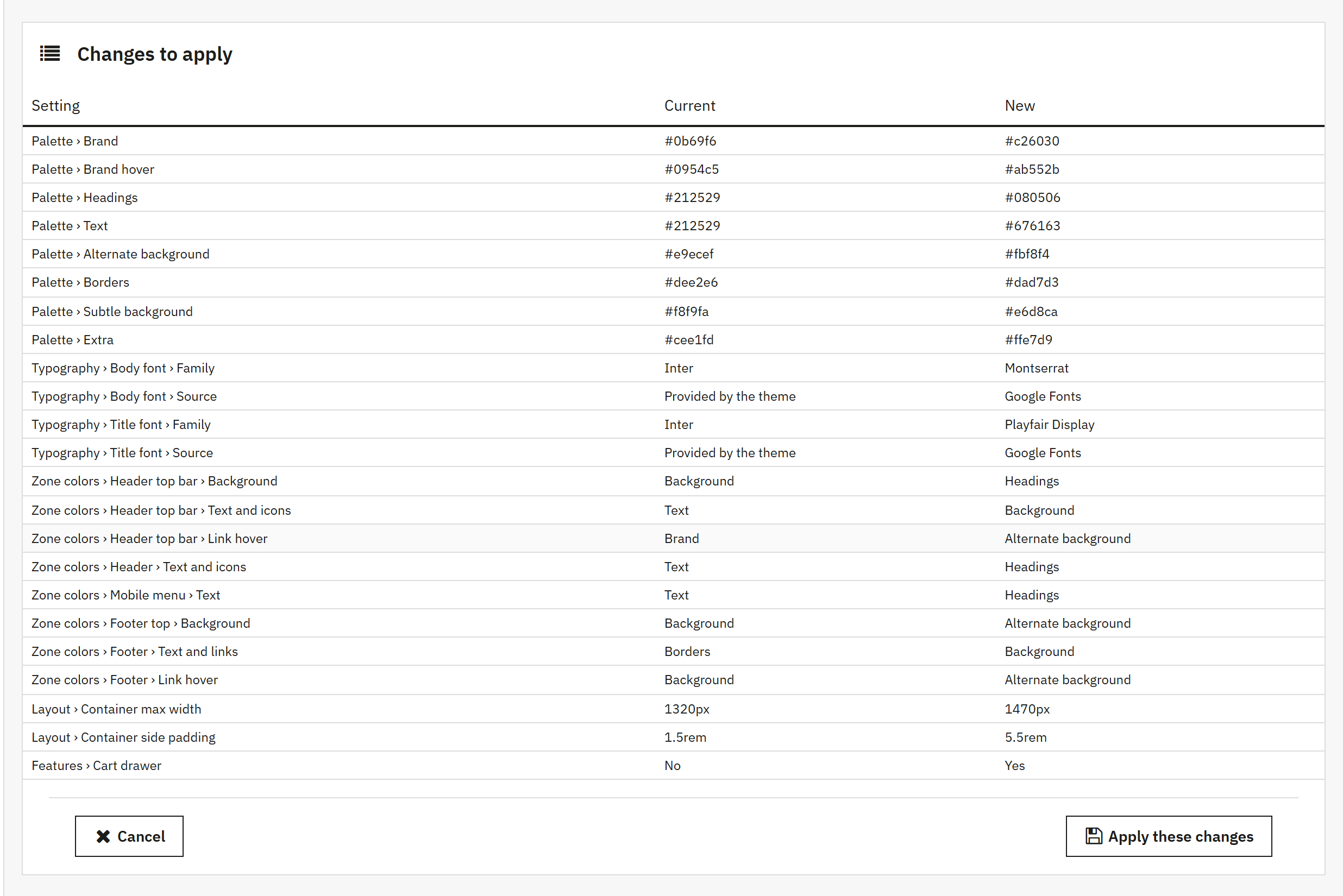
Everything above is a single JSON document. Download it as veo-theme.json to keep a copy or move it to another shop. On import the module lists every setting with its current and new value, and writes nothing until you click "Apply these changes". The file can hold just part of the settings, the palette alone for instance.
If your child theme ships its palette in config/veo-theme.json, the tab finds it and you import it with one button. "Restore factory settings" puts the shop back to how Hummingbird looks without the module.
Under the hood
The module prints one <style> block of CSS custom properties in the page head and loads a stylesheet that applies them to Hummingbird. No generated CSS files, no overrides, no theme templates replaced. A child theme's custom.css loads afterwards, so your own CSS always has the last word.
For developers: the JSON format is published as a JSON Schema inside the module (schema/veo-theme.schema.json), with a title and description for every field, and each save fires the actionVeoHbThemeSettingsUpdated hook with the full configuration.
Compatibility
PrestaShop 9 only, with the Hummingbird theme or a child of it. Tested on PrestaShop 9.2.0 with Hummingbird 2.1.2 and PHP 8.4, and on PrestaShop 9.1.4 with a Hummingbird child theme. Requires PHP 8.1 or later. It is not for PrestaShop 1.7 or 8, where Hummingbird does not exist, and with any other theme the module does nothing.
Need a menu for Hummingbird? Have a look at our PrestaShop mega menu, also tested with this theme.
Installation
Upload the ZIP from Modules > Module Manager and open Design > Hummingbird Customizer. The steps, with screenshots, are in the PDF manual.
Frequently asked questions
Does anything change as soon as I install it?
No. The factory settings are those of Hummingbird 2.1: its blue (#0b69f6), the theme's Inter font, a 1320 px container and no cart drawer. Until you change something the module adds no CSS or classes to the page, so you can install it on a live shop and try things out.
Will I lose my changes when Hummingbird is updated?
No. Settings live in the shop database and fonts in img/, not in the theme folder.
Do I need to clear the cache after saving?
Not PrestaShop's: styles are computed on every page view and there are no CSS files to rebuild. If your server runs a full-page cache, clear that one.
What happens if I uninstall it?
Its settings are deleted and the shop goes back to Hummingbird's own look. Uploaded fonts stay in img/. If you plan to reinstall, export your veo-theme.json first.
Does it work with a theme other than Hummingbird?
No. It checks that the active theme is Hummingbird or a child of it and, if not, adds nothing to the page.
Changelog
3.0.1 – 2026-10-20
Improved: the factory settings are those of Hummingbird 2.1 (its colors, the theme's Inter font, a 1320 px container, no cart drawer) and, while nothing is changed, the module adds no CSS or classes: installing it leaves the shop as it was. "Restore factory settings" brings back Hummingbird's own look. Shops updating from 3.0.0 keep their settings.
Improved: settings are stored under their own prefix (VEOHB_) so they no longer match other Veo modules. Updating from 3.0.0 copies them over and the shop looks the same.
Improved: the module shows as "VEO Hummingbird Customizer" in the module manager.
Improved: an .htaccess file blocks direct access to the module's PHP files.
Fixed: tab names showed in the language of whoever installed the module ("Tipografía" in English). Updating fixes them.
Fixed: save errors are translated and name the field ("Container max width: invalid format"), with no HTML entities such as ".
Fixed: reloading after saving no longer resubmits the form, uploading a font no longer saves the typography fields too, "Import from the active theme" no longer shows the server path and deleting a family's last font also removes its folder.
3.0.0 – 2026-10-17
New: module release. Nine-color palette and zone colors, Google, local, theme or system fonts with woff2 upload, container width and padding, full-width zones, glass header, cart drawer, slide search and subcategory style.
New: the whole configuration as one JSON document with a published schema: export, import with a review of changes, import the active theme's config/veo-theme.json and restore factory settings.
Compatibility
| PrestaShop | Module version | Status |
|---|---|---|
| 9.1 – 9.2 | 3.0.1 | Tested on 10/20/2026 |
| 9.0 and older | — | Not compatible |
| PHP | 8.1 – 8.4 | Compatible |
Data sheet
- Versión
- 3.0.1
- Languages
- English, Spanish
- Support languages
- English, Spanish
Will it work in your shop? Ask us before buying
If you need a specific feature, or your PrestaShop version is not listed as tested, tell us. It often works all the same. And if you ask for a feature that improves the module and can help more shops, we add it in a next version at no cost to you. The person who wrote the module answers you.