
- New

PrestaShop 9 block editor for your home page and CMS pages images

v0.2.0 · updated on 10/20/2026
Validated with the official PrestaShop validator
PrestaShop 9 block editor for your home page and CMS pages
Free PrestaShop block editor for version 9: lay out the home page and CMS pages with text, images, columns, buttons and product grids, and see them with your theme's styles while you edit.
It is in beta and works with Hummingbird. On the shop side it adds about 7 KB of CSS and no JavaScript.
- PS 9
- Instant download from My modules
- Updates from your account

Developed and maintained by Kebes, a PrestaShop Expert level 3 agency with more than 15 years developing for PrestaShop.
VEO Block Editor is a PrestaShop block editor for PrestaShop 9, built on the packages of the WordPress block editor (Gutenberg). You use it to lay out the home page and CMS pages, a campaign landing page for instance, by stacking blocks instead of writing HTML in PrestaShop's text editor.
On Hummingbird the home page is made of whatever modules hook into it (slider, featured products, banner…), each with its own screen and settings. CMS pages only get the classic text editor, which makes it hard to do much beyond text and images one after another. If you have used WordPress, you already know this editor.
How you work with it
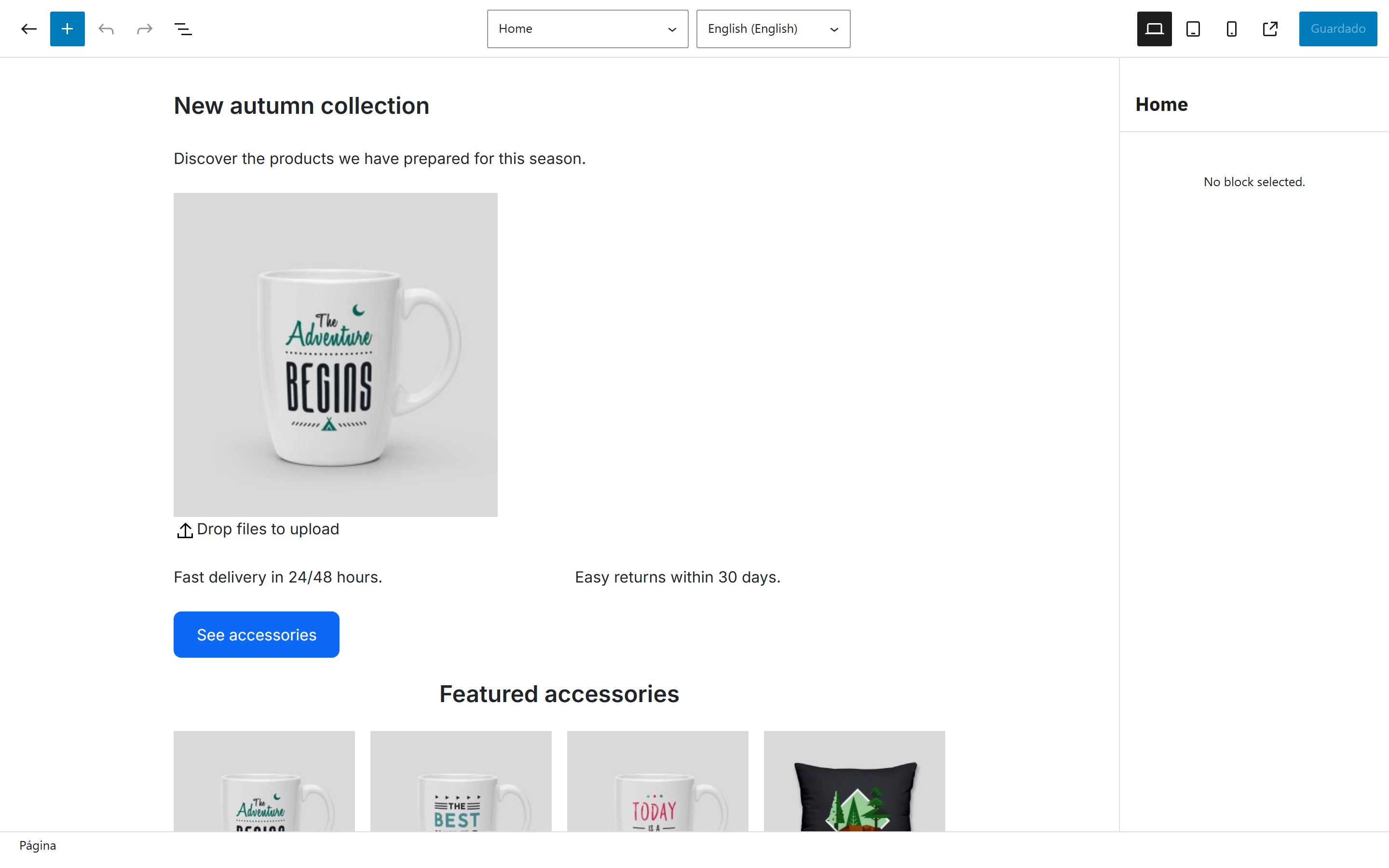
The home page is edited under Design > Block editor and shows where Hummingbird renders the home page (the displayHome hook). When you edit a CMS page there is an "Edit with blocks" button, and inside the editor a page picker at the top takes you from the home page to any CMS page.
The editor runs full screen. The canvas loads your theme's CSS, so what you see while editing is close to what shoppers will see. You get undo and redo, a list view to move blocks around, desktop, tablet and mobile previews, a "View in shop" button, and saving with the button or Ctrl/Cmd + S.
A page that already has content from the classic editor is converted into blocks when you open it. Anything that fits no block stays as an HTML block, so nothing is lost.

Available blocks
Paragraph, heading, list, quote, image, cover (an image or a background color with text on top), media and text, buttons, columns, group (also as a row or a stack), separator, spacer and the product grid. We picked them on purpose: the WordPress blocks that make no sense in a shop cannot be inserted.
You add images by dragging them into the editor or from its library. They are stored in img/cms/, the folder PrestaShop already uses for CMS pages. JPG, PNG, GIF and WebP are accepted. With VEO Media Library installed, the editor opens that library instead of its own.
When you add a link, the search finds the shop's products, categories and CMS pages by name.
Product grid
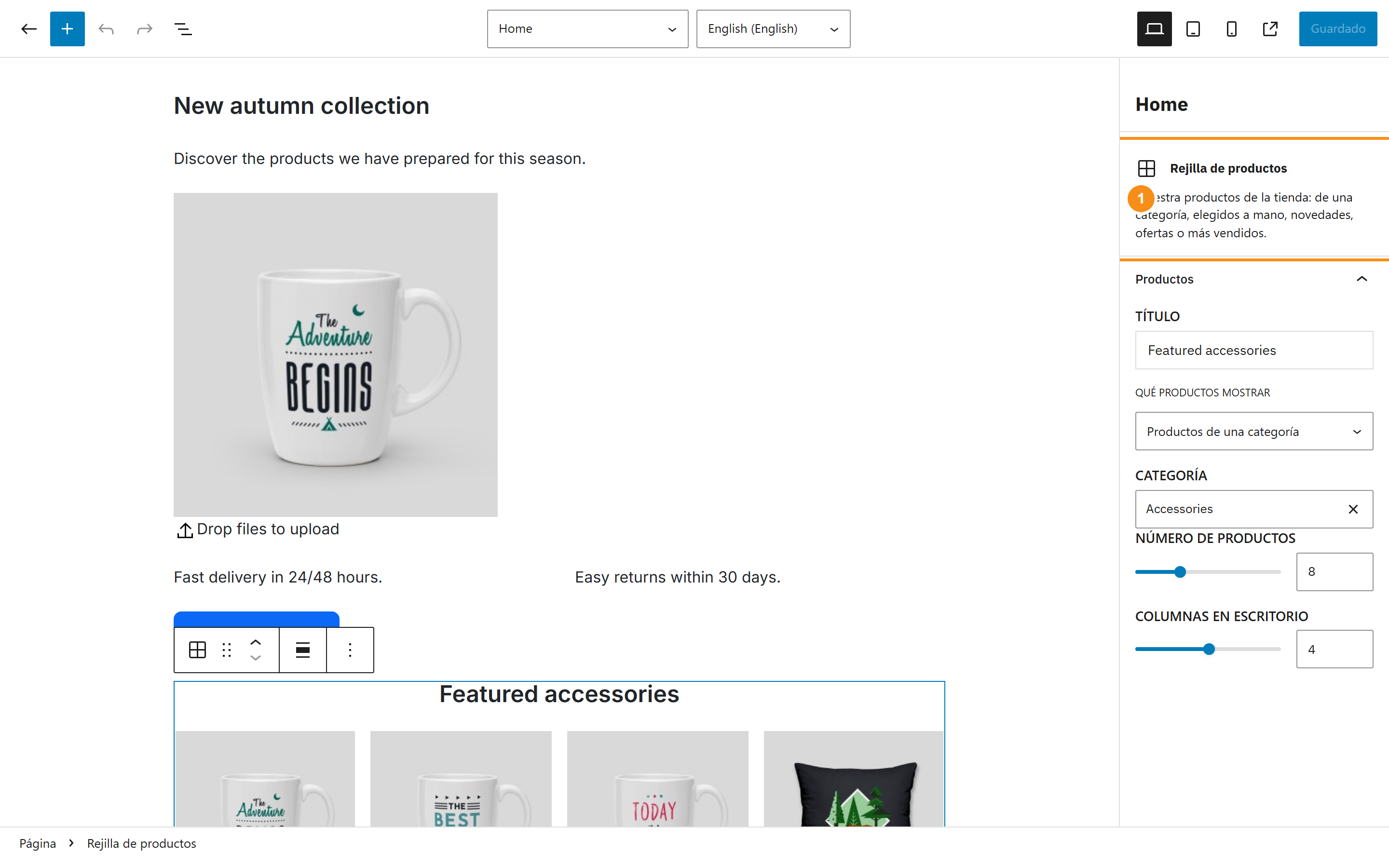
This is the shop block. You choose where the products come from: a category, a hand-picked list (search by name or reference), new arrivals, products on sale or best sellers. Then you give it a title, the number of products (up to 24) and the number of columns (2 to 6).
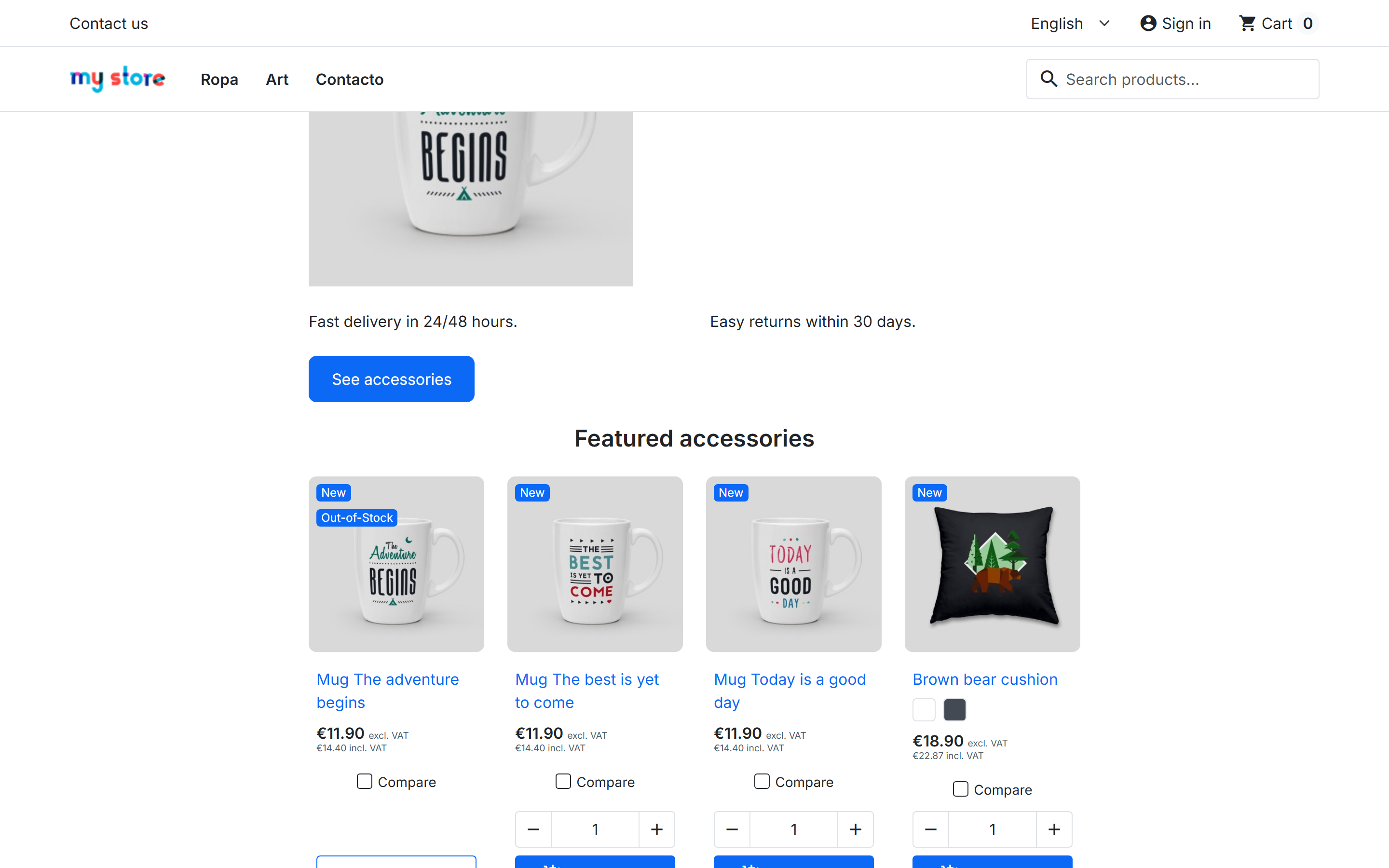
The editor shows a preview with photo, name and price. In the shop the grid uses your theme's product miniature, the same one as the catalog, so it looks just like a category page. To change its markup, copy the template into your theme.
Campaign patterns
Four ready-made sections you insert and then change:
- Full-width cover, a grid of 8 products on sale and three columns of selling points (shipping, returns, payment).
- The cover alone, with a heading, text and a button.
- A call to action on a light background, meant for newsletter sign-ups.
- Media and text with a button, to introduce a collection.
The sample text inside the patterns is in Spanish for now; you replace it with your own anyway.
Design limits that protect your brand
Whoever edits cannot pick any color or font size they like. There are five colors (primary, secondary, dark, light and white) that take their value from the theme's color variables in the shop, four font sizes and five spacing steps. No custom colors, gradients or hand-typed sizes.
Multiple languages
Each language has its own content: switch language at the top of the editor and lay out that version. Undo history is kept per language and, if there are unsaved changes, the editor asks before switching.
What it loads in the shop
Content is saved in the same format WordPress uses: plain HTML with comments marking where each block starts and ends. The shop only gets the CSS of the allowed blocks, about 7 KB compressed, and no JavaScript, loaded on the home page and CMS pages only. The editor itself weighs around 1.1 MB compressed, but that stays in the back office.
CMS pages built with blocks add the has-veo-blocks class to the <body>. The page title is hidden by default, since the layout usually carries its own, and you can show it again page by page from the editor.
It is a beta: what it does and what is missing
Version 0.2.0 does everything described above, and we tested it on two shops running PrestaShop 9.1.4 and 9.2.0. What it does not have yet:
- Drafts or an unsaved preview: what you save goes live.
- Revision history to go back to an earlier layout.
- Palette and sizes you can configure from the back office.
- More shop blocks, such as featured categories, a countdown or a carousel.
- Caching for the product grid.
The editor's own interface comes in English, but the module's labels (the product grid panel, the toolbar, the patterns) are still in Spanish.
Before converting the home page or a CMS page, copy its content somewhere. And once a page is built with blocks, do not open it again in the classic editor: it may damage the comments that delimit the blocks.
Compatibility and license
PrestaShop 9 only, with the Hummingbird theme or a child of it. Tested on PrestaShop 9.2.0 with Hummingbird 2.1.2 and PHP 8.4, and on PrestaShop 9.1.4 with a Hummingbird child theme. Requires PHP 8.1 or later. It is not for PrestaShop 1.7 or 8.
If your shop has HTMLPurifier turned on (Shop Parameters > General), the module teaches it the markup its blocks use so it is not stripped on save. Everything else is filtered as before.
The license is GPL-2.0-or-later, not the AFL of our other modules, because it ships the WordPress block editor, which is distributed under the GPL.
To change Hummingbird's colors and fonts as well, have a look at our free Hummingbird theme customizer. The editor's grids and buttons pick up the theme's primary color.
Installation
Upload the ZIP from Modules > Module Manager and open Design > Block editor. Disable or move the home page modules you no longer want (slider, featured products…). The steps, with screenshots, are in the PDF manual.
Frequently asked questions
Does it work with a theme other than Hummingbird?
We have only tested it with Hummingbird and its child themes. The canvas loads the active theme's theme.css and the grid uses its product list template, so with other themes we cannot vouch for the result.
What happens to my content if I uninstall the module?
CMS pages keep their HTML and still display, but without the product grids, which the module renders. Home page content lives in a module table and is deleted on uninstall.
Can I keep using the classic editor on other CMS pages?
Yes. Only the pages you open with "Edit with blocks" change; the rest keep the usual editor.
Which languages is the editor available in?
The editor interface comes in English and Spanish, following the employee's language. The module's own labels are in Spanish for now.
Changelog
0.2.0 – 2026-10-20
Important: first public release, in beta. Copy your home page and CMS pages before converting them.
New: block editor for the PrestaShop 9 home page and CMS pages, with an "Edit with blocks" button on CMS pages and conversion of existing content when opened.
New: product grid from a category, a hand-picked list, new arrivals, products on sale or best sellers, using the theme's product miniature.
New: four campaign patterns, a palette, font sizes and spacing limited to the brand's, and separate content per language.
New: CMS page title shown or hidden page by page, and has-veo-blocks and veo-blocks-no-title classes on the <body>.
New: uses the VEO Media Library picker when that module is installed.
New: editor interface in English and Spanish; the module's own labels are in Spanish for now.
New: works with HTMLPurifier: if the shop has it turned on, blocks do not break on save.
Compatibility
| PrestaShop | Module version | Status |
|---|---|---|
| 9.1 – 9.2 | 0.2.0 | Tested on 10/20/2026 |
| 9.0 and older | — | Not compatible |
| PHP | 8.1 – 8.4 | Compatible |
Data sheet
- Versión
- 0.2.0
- Languages
- English, Spanish
- Support languages
- English, Spanish
Will it work in your shop? Ask us before buying
If you need a specific feature, or your PrestaShop version is not listed as tested, tell us. It often works all the same. And if you ask for a feature that improves the module and can help more shops, we add it in a next version at no cost to you. The person who wrote the module answers you.